
Overview
Learn the key differences between the more and less commands, which are frequently used when checking large text files or logs in the Linux terminal. By comparing the operation methods and navigation features of both commands, this guide presents the optimal file viewing method for practical work environments.
1. Basics of the more Command: Page-by-Page Text Viewing
To create a test data file for practicing the more command, run the command seq 1 50 > sample_more.txt.

The more command is used for forward-viewing large text files page by page instead of printing the entire content at once.
Running the command more sample_more.txt displays the first page of text from the sample_more.txt file on the screen.
⚙️ [Key Options]
-d : Displays prompt messages and help text at the bottom of the screen when an invalid key is pressed.-s : Squeezes multiple consecutive blank lines into a single blank line.-c : Repaints the text line by line from the top instead of scrolling the screen.-p : Clears the entire screen before displaying text without scrolling.+n : Starts viewing text from the specified line n instead of the first line of the file.

2. Basics of the less Command: Bidirectional Navigation and Large File Handling
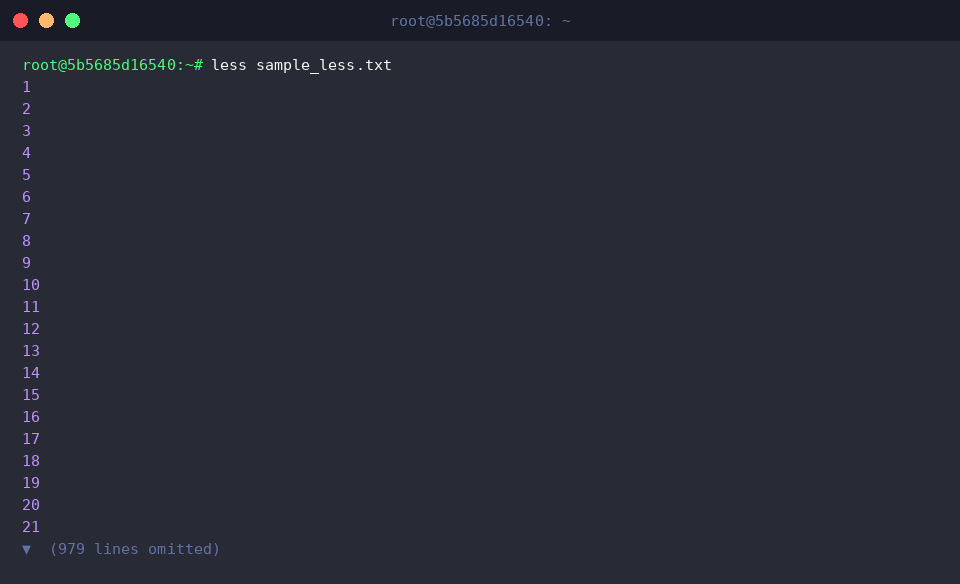
To create a large test data file to practice the less command, run the command seq 1 1000 > sample_less.txt.

Running the command less sample_less.txt displays the first page of text from the sample_less.txt file, allowing you to freely navigate up and down using the keyboard arrow keys.
Because the less command sequentially loads only the necessary portion for the screen without loading the entire file into memory, it saves system resources and enables fast, lag-free viewing of large files.
3. Comparison of Core Features and Controls: more vs less
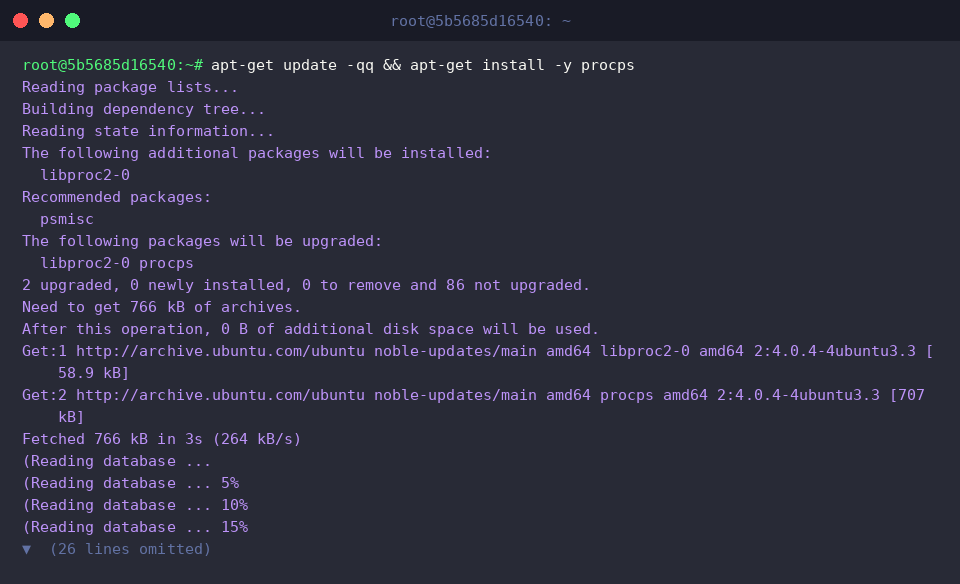
To practice using the pipe operator with the ps command, install the relevant package using the command apt-get update -qq && apt-get install -y procps.
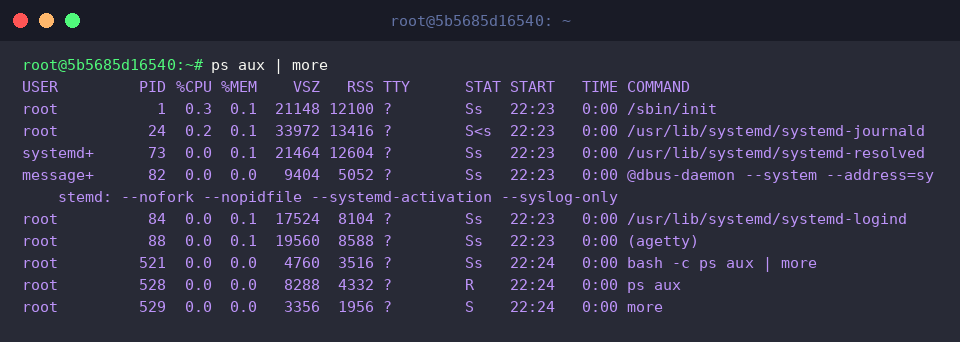
Piping the output of the ps aux command with the pipe operator (|) to the more command allows you to view the full process list forward page by page.
This prevents the terminal output from scrolling past all at once, allowing you to press the Spacebar to move to the next screen and inspect process details.
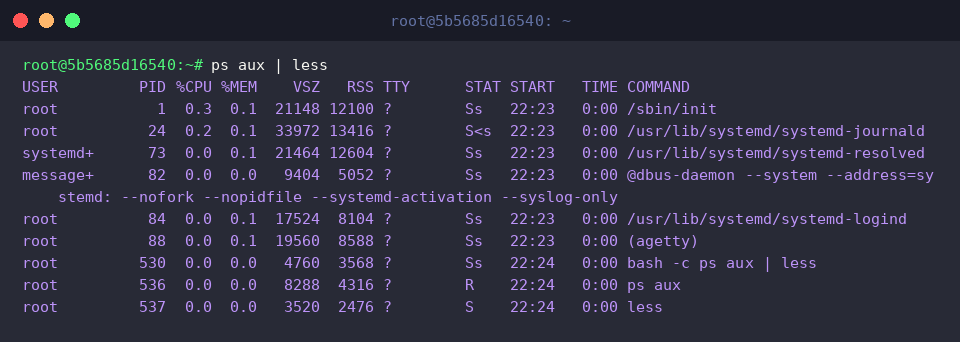
Piping the output of the ps aux command with the pipe operator (|) to the less command allows you to freely navigate the process list both up and down.
You can seamlessly browse through screens using the keyboard arrow keys, Page Up, and Page Down keys, and quickly search for a specific process name using the / key.
4. Practical Search and Monitoring Tips for the less Command
To create a test log file for practicing the practical search feature of the less command, run the command echo -e '2026-08-29 INFO System Start\n2026-08-29 ERROR Connection Failed\n2026-08-29 INFO Retrying...' > app.log.

Running the command less +/ERROR app.log opens app.log and immediately jumps to the location where the string ERROR appears to display the text.
This is extremely useful when quickly navigating to the starting point of a specific error or string pattern in a large log file.

So far, we have summarized the main differences and practical tips for using the more and less commands to view large files in Linux.
We hope you understand the characteristics of each command and utilize them appropriately depending on the situation to boost your work efficiency.