
Overview
In a Linux environment, opening large files or logs of several hundred megabytes using the cat command can cause memory overload and terminal lag. Using the less command allows you to view text quickly page by page and navigate efficiently without loading the entire file into memory. In this article, we will introduce practical tips for viewing long files and searching for keywords using the less command in the Ubuntu terminal.
1. Overview of the less Command and Creating a Test File for Practice
To practice using the less command, update the package list to the latest version and install the less package.
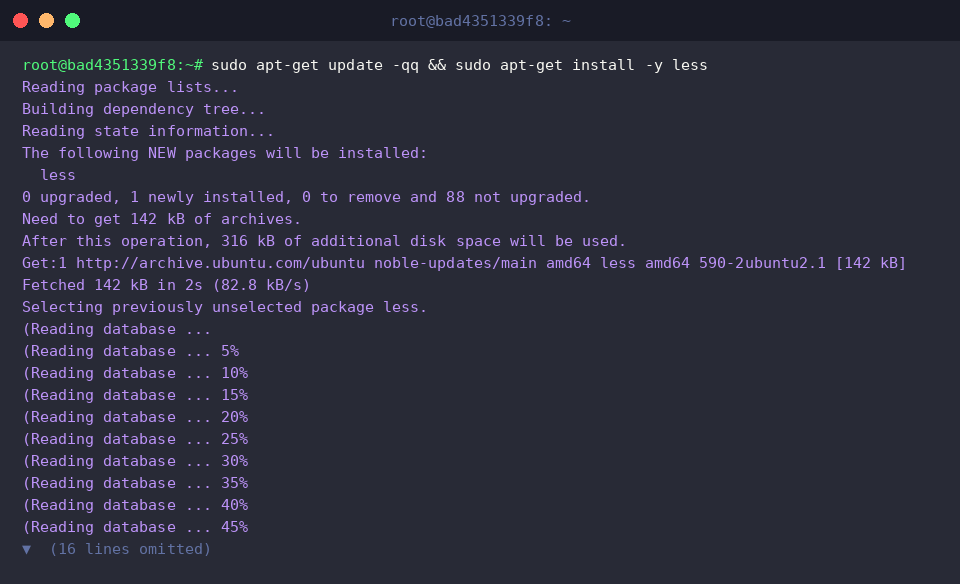
To practice viewing with the less command, create a 500-line sample_log.txt test file containing numbers from 1 to 500.

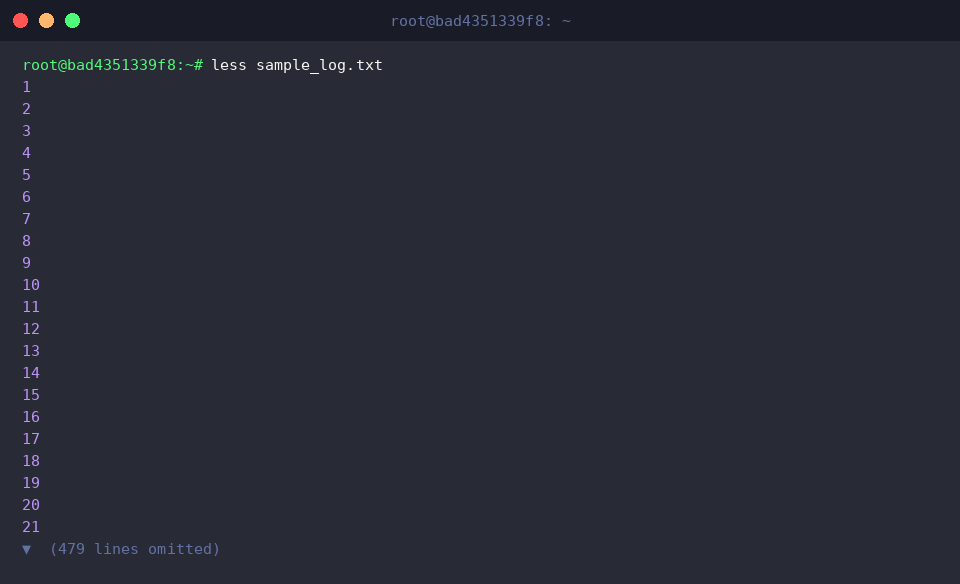
The less command is a viewer that allows you to efficiently read large text files page by page without loading them into memory all at once.
Running the less sample_log.txt command allows you to view the 500 lines of generated file content neatly fitted to the terminal screen size.
⚙️ [Main Options]
-N : Displays line numbers at the beginning of each line.-S : Truncates long lines horizontally instead of wrapping them automatically, allowing you to scroll using the left and right arrow keys.-i : Performs case-insensitive search when searching for search terms.-X : Keeps the file content on the screen even after exiting less.-F : If the entire content of the file fits on a single screen, outputs the content immediately and exits without launching less.
2. Line Number Display Option and Efficient Navigation Shortcuts
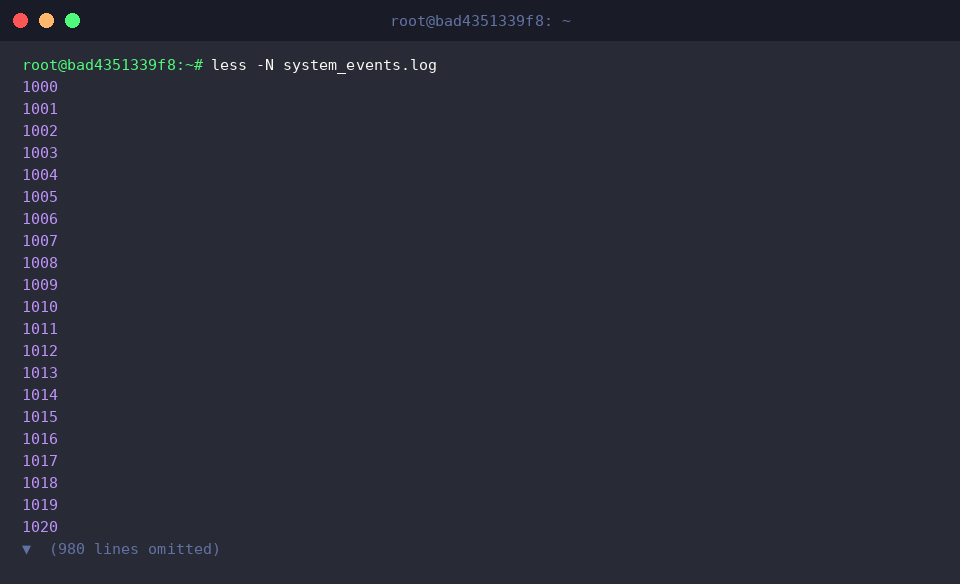
To practice the less command, create a sample log file system_events.log containing consecutive numbers from 1000 to 2000.

Running the less -N system_events.log command displays line numbers at the beginning of each line, allowing you to accurately pinpoint your position within the log.
While viewing, press the spacebar to move down one page, Enter to move down one line, g to jump to the very first line at the top, and G to jump immediately to the very last line at the bottom, enabling smooth and efficient navigation even through large logs without lag.
3. Forward and Backward Search for Specific Keywords in Large Logs
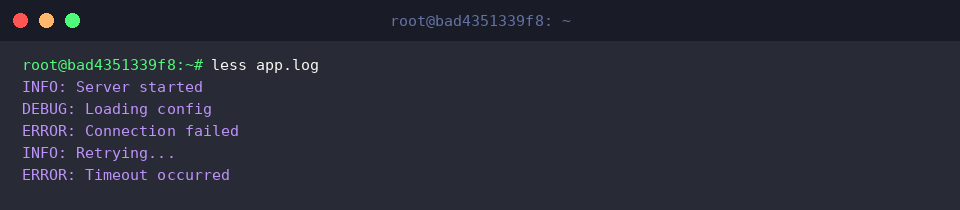
To practice forward and backward keyword searching with the less command, create a sample app.log file containing various status logs.

Run the less app.log command to check the contents of the generated log file.
In the log viewer screen, press / to perform a forward search downward for keywords, and press ? to perform a backward search upward.
After entering a search term, press n to move to the next match or N to move to the previous match, allowing you to quickly locate desired log entries such as ERROR.
4. Case-Insensitive Search and Real-Time Log Tracking Integration
To practice case-insensitive searching with the less command, create a sample service.log file containing a mix of lowercase and uppercase log levels.
![echo -e ‘2026-08-29 [INFO] Process started\n2026-08-29 [error] Database connection error\n2026-08-29 [ERROR] Retry limit exceeded’ > service.log](/ubuntu/20260829_071913_4_less_less/captures/s04_c01_echo_-e__2026-08-29__INFO__Process_started_n2026-0.png)
Running the less -i service.log command opens the file with the -i option enabled, allowing case-insensitive keyword searches.
Searching for /error on the viewer screen matches both lowercase error and uppercase ERROR, helping you analyze logs quickly and conveniently without missing anything.

So far, we have summarized the core usage of the less command to quickly inspect large log files without lag.
We hope you use the various shortcuts and tips covered today to analyze logs more smoothly and efficiently in your work.