
Overview
This guide introduces the core options and practical usage of the ls command, which is the most fundamental command in Linux and Ubuntu environments. Beyond simply listing file names, it covers file organization know-how that can be immediately applied in practice, including detailed file information, human-readable file sizes, hidden file viewing, and sorting techniques.
1. Basic File List Viewing, Hidden Files, and Detailed Permissions (ls -l, ls -al)
To create and navigate to a dedicated directory for practicing ls commands and prepare regular and hidden files, run the mkdir -p ~/ls_demo && cd ~/ls_demo && touch file1.txt file2.log .hidden_config command.

The ls -l command displays detailed information about files in the directory in a list format, such as permissions, owner, group, file size, and modification date.
⚙️ [Key Options]
-a : Displays all items, including hidden files and directories whose names start with a dot.-l : Displays detailed information such as file permissions, owner, and file size.-h : Displays file sizes in human-readable units (KB, MB, GB).-t : Sorts and displays files by modification time, starting with the most recently modified.-S : Displays the list sorted by file size in descending order.
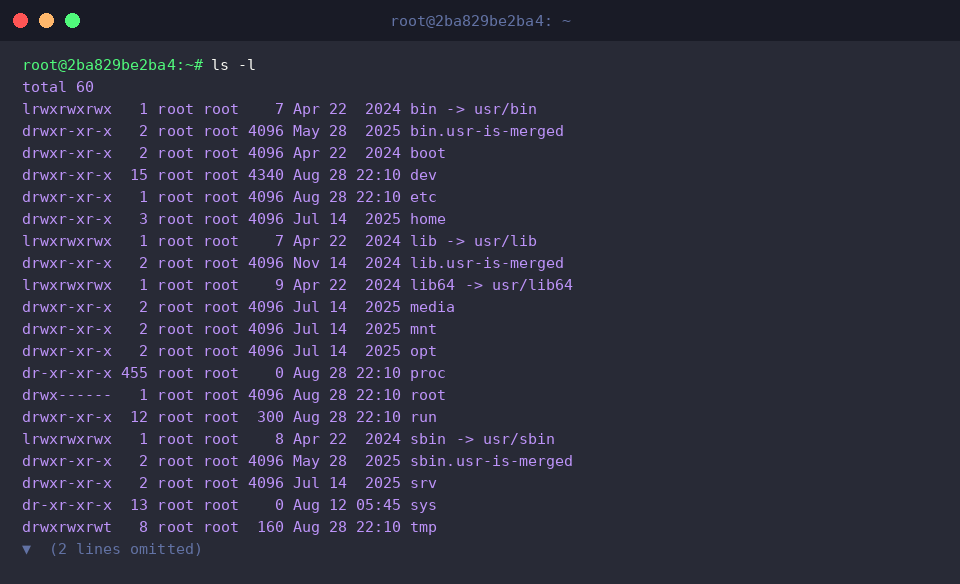
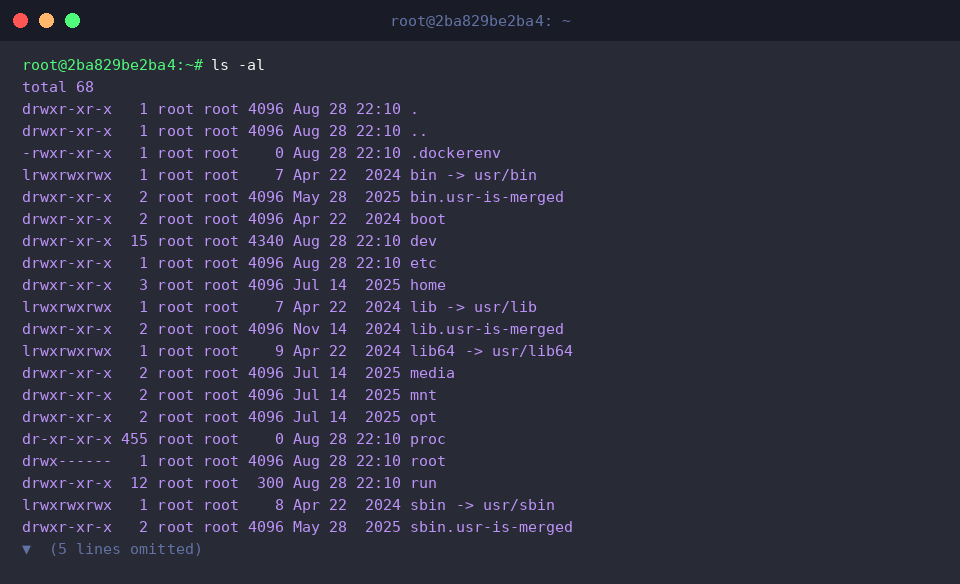
The ls -al command combines the -a and -l options to output detailed information for all items, including hidden files.
This allows you to check the permissions and owner information of the .hidden_config file at a glance, which was not displayed in the default list output.
2. Human-Readable File Sizes and Sorting by File Size (ls -lh, ls -lhS)
To practice comparing and sorting file sizes, run the truncate -s 1M ~/ls_demo/sample_1m.bin && truncate -s 5M ~/ls_demo/sample_5m.bin command to create sample files of 1MB and 5MB.

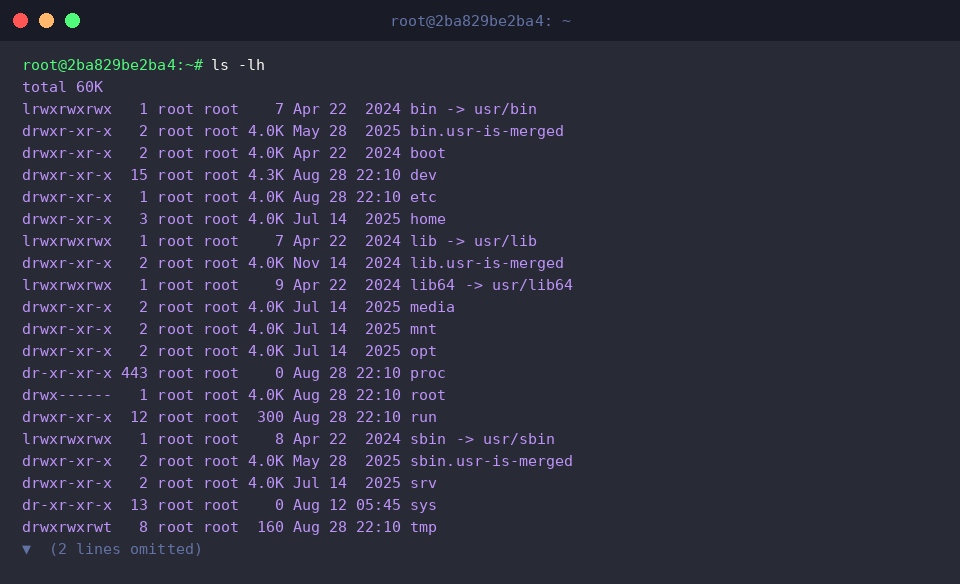
The ls -lh command converts file sizes into human-readable units such as KB and MB, displaying a detailed list.
From the output, you can confirm that file sizes are intuitively displayed as 1M and 5M instead of byte values.
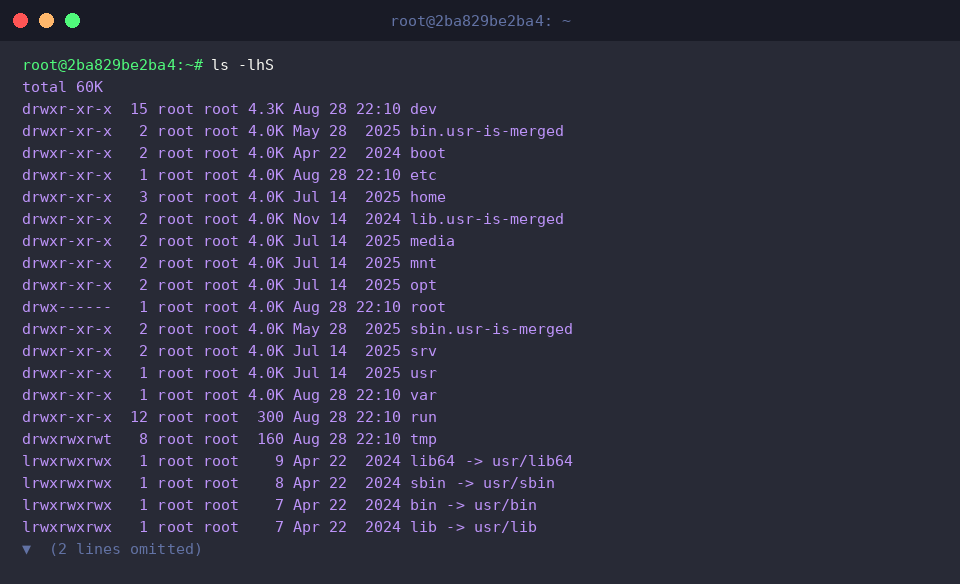
The ls -lhS command displays sizes in human-readable units while sorting the list by file size in descending order.
This makes it easy to identify files starting from the largest one in the directory.
3. Sorting by Modification Time and Classifying Directories (ls -F, ls -ltr)
To practice directory classification and sorting by modification time, run the mkdir -p ~/ls_demo/sub_dir && touch ~/ls_demo/latest_file.txt command to create a subdirectory and a new file.

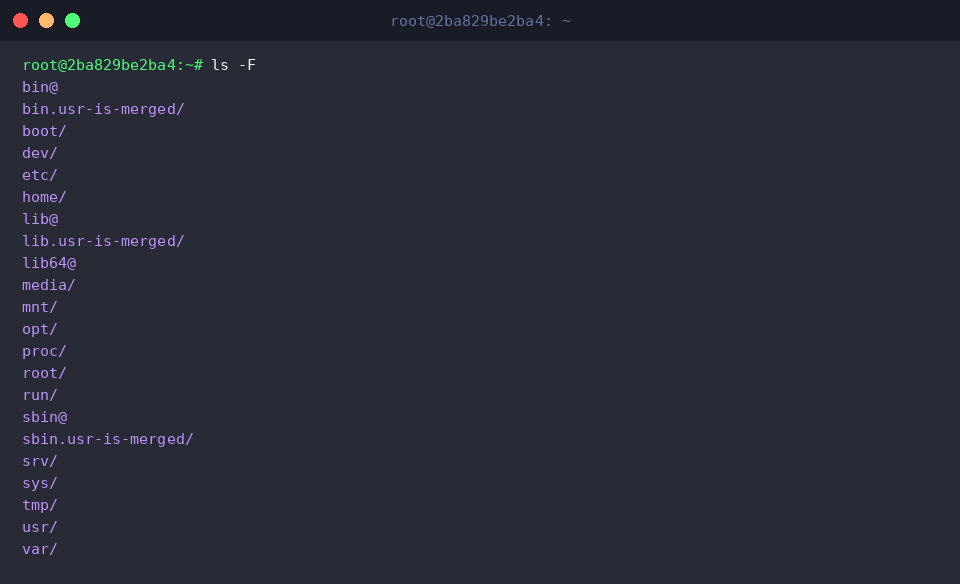
The ls -F command appends specific indicators after file and directory names to visually distinguish their types.
From the output, you can see / appended to directories and @ to symbolic links, allowing you to instantly identify each file type.
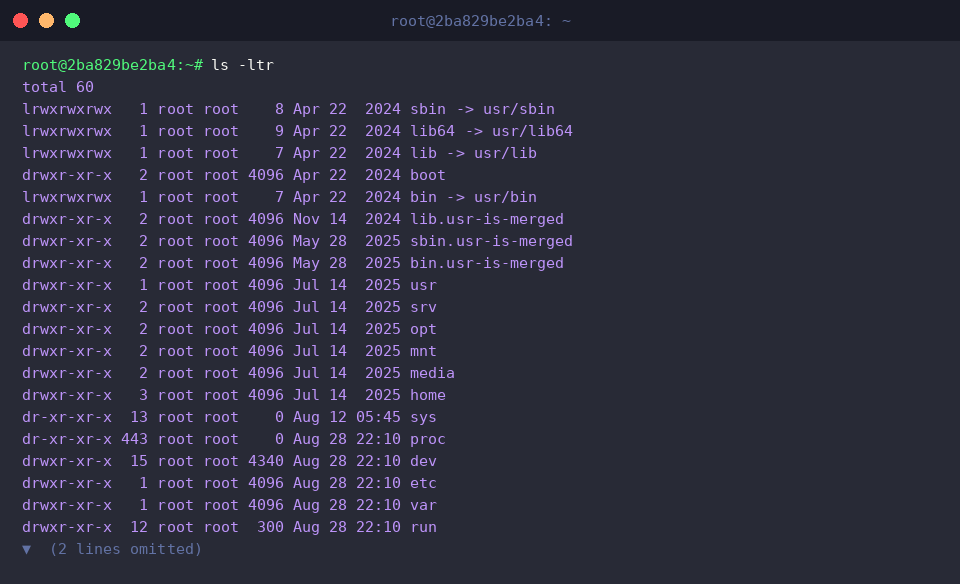
The ls -ltr command combines detailed output (-l), sorting by modification time (-t), and reverse order (-r) options to display items starting from the oldest.
Since recently modified or created files appear at the bottom of the list, you can quickly locate the latest files on your terminal screen.
4. Recursive Directory Listing and Tree Visualization (ls -R, tree)
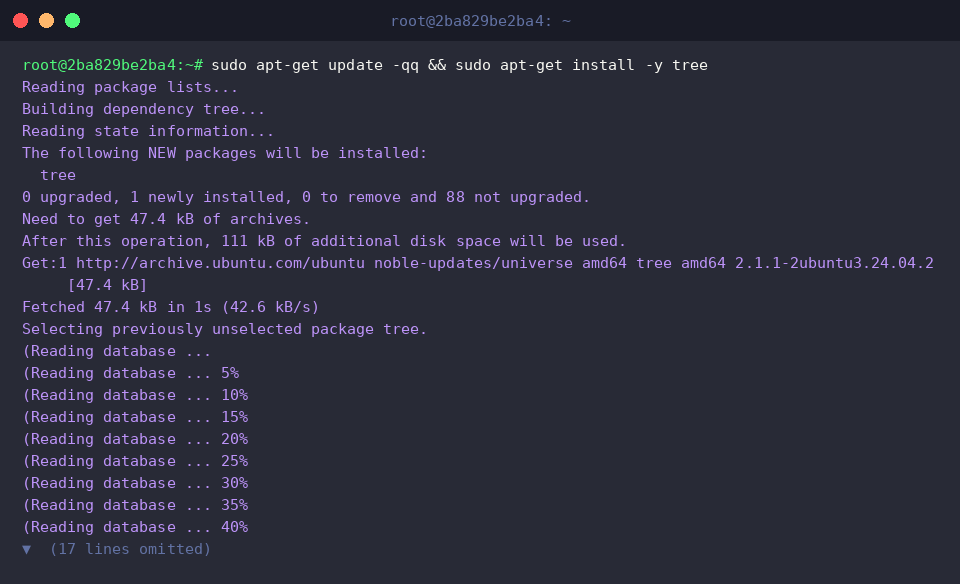
To practice using the tree command, install the relevant package using the sudo apt-get update -qq && sudo apt-get install -y tree command.
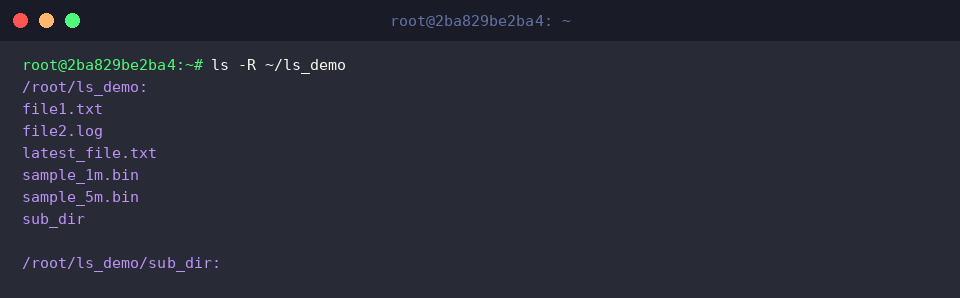
The ls -R command recursively navigates and displays the file list for the specified directory and all its subdirectories.
From the output, you can see that it sequentially lists not only the ~/ls_demo directory but also the contents inside the sub_dir subdirectory.
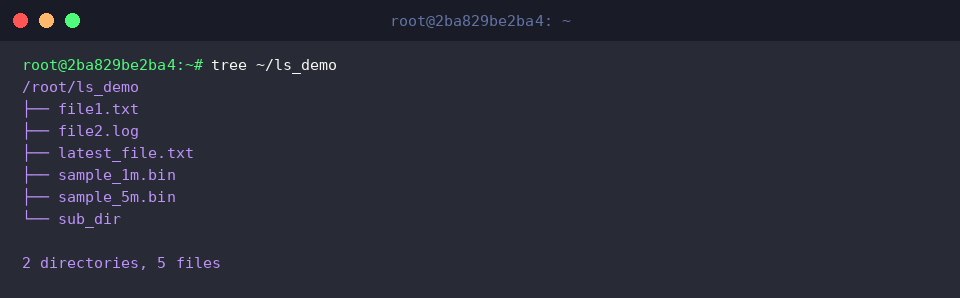
The tree command visualizes and displays the directory and file structure in a hierarchical tree format.
From the output, you can intuitively grasp directory inclusion relationships and file structures at a glance in a branch-like format.
So far, we have covered the key options for the Ubuntu ls command along with 5 essential tips for organizing file lists cleanly.
Actively utilize these options in your daily terminal tasks to create a smarter and more efficient Linux environment.